Text SVG Cut Files for Cricut & Silhouette
Make a free text SVG cut file from your own words: pick a style, and the letters and their outlines come out as solid, welded shapes with the colors on separate layers — ready to upload to a cutting machine. No sign-up. Best for vinyl decals, iron-on shirts, tumblers, signs and stickers.
Free while in beta · No sign-up · Transparent PNG, SVG, JPG and print-ready PDF
Styles that cut well
Every example below is a real style in the tool. Tap one to open it, then change the word.
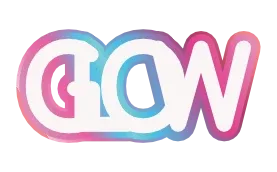
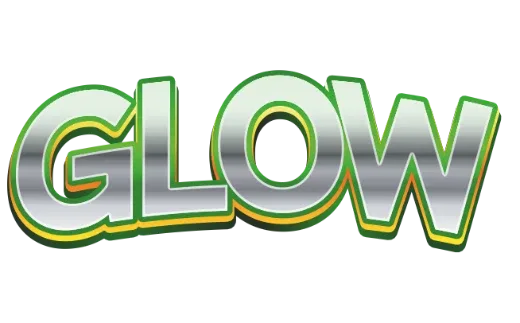
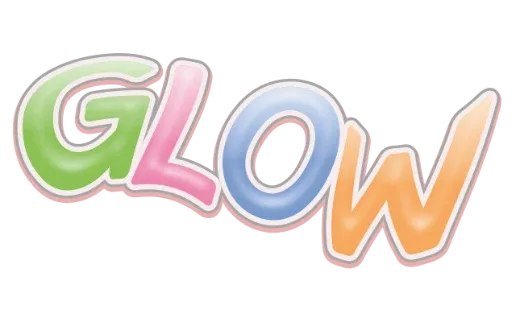
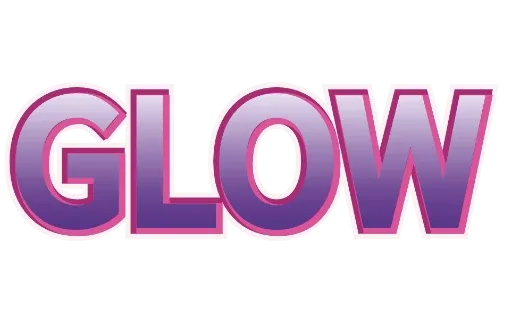
How it works
-
1Type your words
A name, a shop, a phrase for a shirt or a tumbler. Up to 24 characters.

-
2Pick a style
Layered outlines and solid colors cut best. Open the style to change the colors and the outline thickness.

-
3Export a cut file
Tap Customize more to open the style in the editor, export the SVG and choose “Cut file”. Upload it to your cutting machine’s design app. No account.

Cut files built from your letters
Text that looks great on screen often cuts badly: outlines are only lines, letters overlap, and every color is mixed in one piece. A cut file needs solid shapes, welded letters and the colors on separate layers. Here that is done for you when you export — pick a style, type your words, tap Customize more to open it in the editor, export the SVG as “Cut file”, and upload it.
What the cut file does
| On screen | In the cut file |
|---|---|
| Outlines drawn as lines | Turned into solid shapes the blade can follow |
| Letters touching or overlapping | Welded into one piece, so they don’t cut apart |
| Several colors | Split into layers, for layered vinyl and iron-on |
| Gradients | One flat color |
| Glitter, gloss, shadows | Left out — they can’t be cut |
Tips for text that cuts cleanly
- Choose thick fonts for small decals; thin strokes tear when weeding.
- Keep outlines at least a few millimeters wide at the size you will cut.
- Check the size before cutting. Set the final width in your cutting app.
- Layer from the biggest shape up. The outermost outline goes down first.
Guides
More text styles
- Logo Text MakerEvery style in one place
- 3D Text GeneratorDepth, sides and gloss
- Retro Text GeneratorMarquee bulbs, stacked outlines, 70s and 80s
- Game Logo Text GeneratorChrome, gold, grunge and fire
- Bubble Letter GeneratorPuffy, rounded letters with thick outlines
- Outline Text GeneratorStacked outlines and sticker edges
- Glitter Text GeneratorPink, coral and gold sparkle
- Cute Text GeneratorKawaii pastel, puffy and patterned
- Graffiti Text GeneratorGrunge, chrome and street-style 3D
- Vector Text GeneratorEditable SVG text and logos
- Varsity Letter GeneratorCollege and athletic lettering
- Neon Text GeneratorGlowing neon-sign lettering
- Gold Text GeneratorGold script for weddings and logos
- Christmas Text GeneratorCandy cane and holiday lettering
- Balloon Text GeneratorPink, gold and silver balloon letters
- Stacked Text GeneratorTwo and three line text logos, live
- Birthday Text GeneratorName banners, cake toppers and party signs
- YouTube Thumbnail TextBold title text that reads small
- T-Shirt Text GeneratorIron-on, DTF and team shirts
- Name Decal MakerTumblers, bottles and lockers
- Team Name Logo MakerSports and esports team names
- Cool Text alternativeHow it compares
- Canva text effects alternativeStacked outlines, 3D and glitter for Canva designs
- GuidesPrinting, cutting and lettering how-tos
FAQ
QWhat is different about the cut file?
QWhich effects can’t be cut?
QHow do I make a layered vinyl or iron-on design?
QDoes it work with Cricut Design Space and Silhouette Studio?
QCan I make it without a computer?
QIs it really free? Do I need to sign up?
QCan I use what I make commercially?
Make a cut file from your words
No sign-up. Free while in beta. · Browse all styles