The short answer
- Most apps allow only one outline; a second one means copying the letters and nudging them into place by hand.
- DecoTecoPop builds outlines as shapes, so you can tap to add as many as you like. Each one’s colour, thickness and order can be changed later.
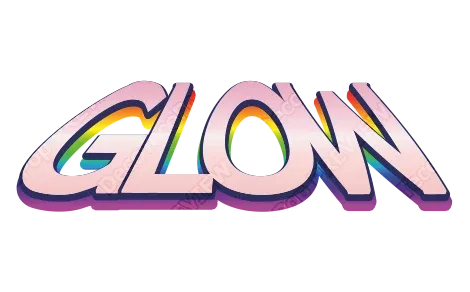
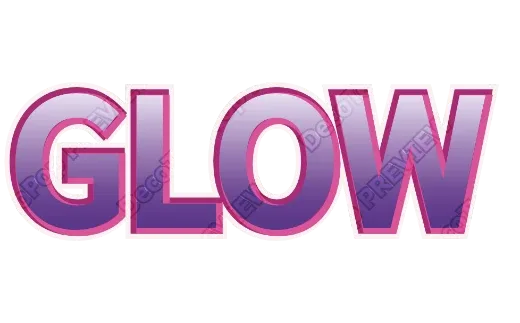
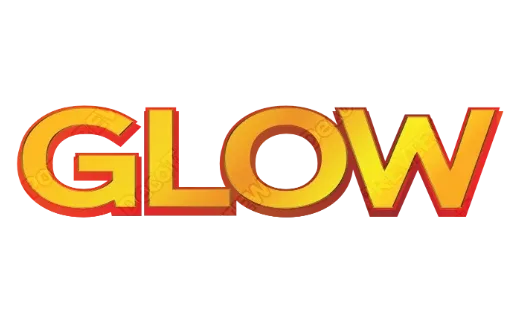
- A reliable colour order: letter colour on the inside → white just outside it → a deeper colour (black or an accent) further out. Thin on the inside, thicker as you go out.
- The outermost outline can be used directly as the base for 3D.
- Editing is free; exporting a print-ready PDF with bleed is free while in beta, with no sign-up.
You want a double or triple outline, but you only get one
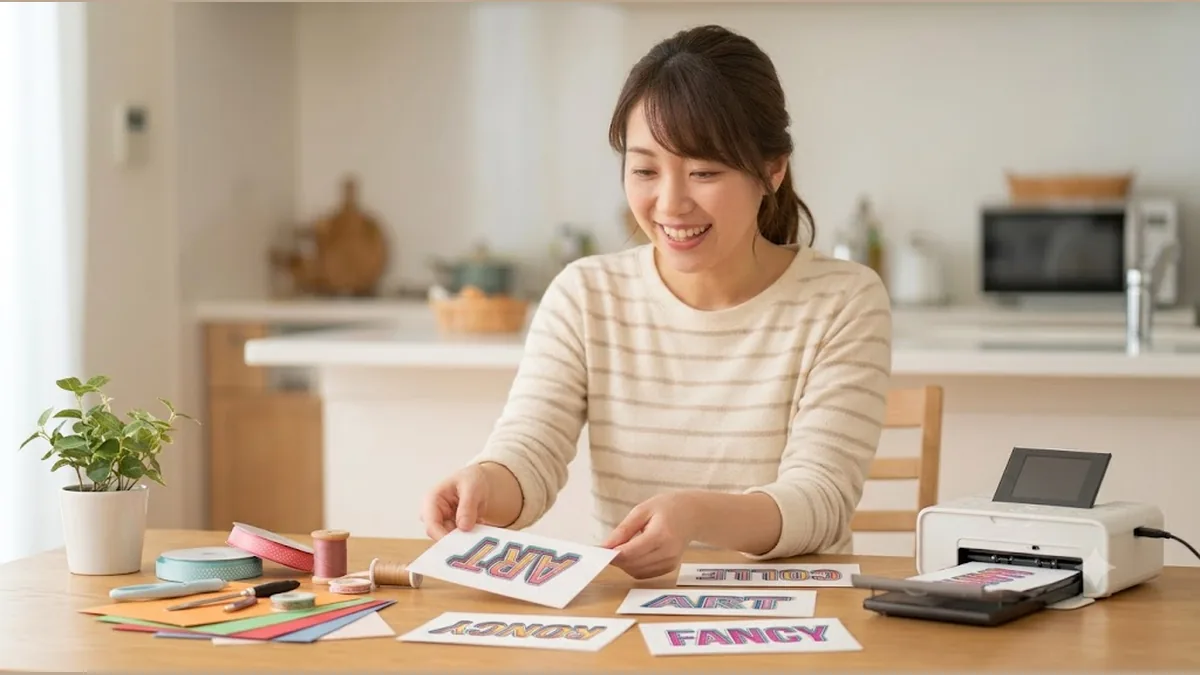
Shop price tags, a poster for the kids’ club, fan-club cheering signs. Have you ever admired that cute text with outlines stacked several layers deep — a white outline, then black, then pink?
When you actually try to make it, most apps give you only one outline. Add a second, and you’re stuck copying the letters and nudging them around. What a pain.
Why is stacking outlines so hard?
To make a double outline, you really need to layer “a shape slightly larger than the letter,” then “a larger one still,” in order. Doing that in an app means copying the same letters over and over and lining them up by hand — and if they’re off by even a hair, it looks messy.
On top of that, app outlines show their jaggedness when enlarged. Print is far finer than your screen, so roughness you didn’t notice on screen can stand out on paper.
DecoTecoPop builds the outlines as shapes for you, automatically. So you can add “one more on the outside, in a different color” as many times as you like, and no matter how big you make it, the edges stay smooth. You can change the stacking order and colors later, too.
It finds the outermost edge and can make it 3D
It automatically detects the outermost edge of your stacked outlines, so you can use that outer rim to make the text 3D (popping out). Pile on outlines, then add depth on top — even that kind of “loaded up” look holds together.
How you used to make multi-layer outlines
Professional PC software costs around $23 a month, needs a PC, and has a complex setup. Copying and nudging in a phone app is free, but misalignment and recoloring are misery. Hiring a designer looks great, but it takes time and money.
Clean multi-layer outlines were basically reserved for people who could use professional software.
With DecoTecoPop, it’s 3 steps [Free, no sign-up]
Just open your browser. Outlines in any color, any number of layers.
Step 1: Type your text
Enter the word you want to outline. With or without a photo — both work.
Step 2: Add outlines and stack the colors
Tap to add an outline, then one more on the outside, then another. Set each one’s thickness and color freely, and rearrange the order whenever you like. The edges stay smooth even when enlarged.
Step 3: Switch to print colors and save
It automatically matches your colors to how they’ll look in print, and shows you how much the color shifts. It adds the bleed automatically so the outline reaches the edges, and saves a print-ready PDF you can hand straight to a print shop.
→ Make outlined text for free (Photos: PNG, JPEG, WEBP / no sign-up)
Where multi-layer outlines work, and how to combine colors
Multi-layer outlined text really earns its keep whenever you want to “stand out” or “look poppy.”
- Price tags and POP signs: Even on a busy background, a white outline plus a deep color makes the text pop out crisply.
- Fan-event cheering signs: Use a member’s color for the outline and people can tell who you’re rooting for from across the room.
- Stickers and logos: Wrap it in a thick white outline and it blends in on any background you stick it to.
Tips for layering colors
A reliable, good-looking order is: letter color on the inside → white just outside it → a deeper color (black or an accent) further out. Slipping one layer of white in between sharpens the boundary between the letter and the outer outline and makes it far easier to read. For thickness, “thin on the inside, thicker as you go out” keeps it looking stable.
You can use the outermost outline directly as the base for 3D, so a nice combo is to load up the outlines and then make them pop out. Since colors shift a little when printed, it’s reassuring to check the converted color when you’re using a vivid accent.
FAQ
Q. Which phones and browsers does it work on?
Editing decorated text needs a device and browser that support WebGPU, a relatively new technology. As a guide: on iPhone, a recent iOS (iOS 26 or later) in Safari; on Android, a recent version of Chrome. On unsupported devices the decoration editor may not open (even then, you can still use the basic text entry and print-data features).
Q. Is it really free?
Editing decorated text (decorating and reshaping) is free, as far as you want to go. Exporting the print data (saving as PDF and so on) is free while we’re in beta (it will become paid later).
Q. How many outlines can I stack?
Practically as many as you want. It’s built on a light process, so it stays responsive no matter how many layers you add. You can change each one’s color, thickness, and order afterward.
Q. Can I still retype the text after stacking outlines?
Yes. No matter how many decorations you pile on, your text can always be retyped — fixing typos or changing the wording is free.
Summary
- Most apps allow only one outline, and stacking them by hand is a chore
- DecoTecoPop builds the outlines as shapes for you, so you can layer any color, any number of times
- It finds the outermost edge and can use it as the base for 3D
- Editing decorated text is always free; converting to print colors and exporting are free while we’re in beta — no sign-up, on your phone alone
“Magic outline text” no longer needs special software.