The short answer
Long-press the image in the Gemini app, tap Save, then print it from your photo library — at home, or by sending it to a store photo counter for pickup. You don’t need a computer.
| Where to print | Best for | What it costs (typical) | What you do on the phone |
|---|---|---|---|
| Home printer | A quick test, a few copies | Ink and paper | iPhone: Share → Print. Android: ⋮ → Print |
| Walmart photo | 4x6 prints, same day | About $0.14–0.16 per 4x6, pickup in about an hour at most stores | Upload in the Walmart app or site |
| CVS / Walgreens | Same-day prints near you | Walgreens 4x6 usually $0.35–0.49; CVS offers same-day pickup on many items | Upload in their app, pick a store |
| Staples / print shop | Flyers, posters, larger runs | Depends on size and quantity | Bring or upload a print-ready PDF |
1. Save the image (long-press, then Save)
In the Gemini app, long-press the generated image and choose Save. “Share” creates a public link, which isn’t what you want for printing. On a computer, hover over the image and use Download full size.
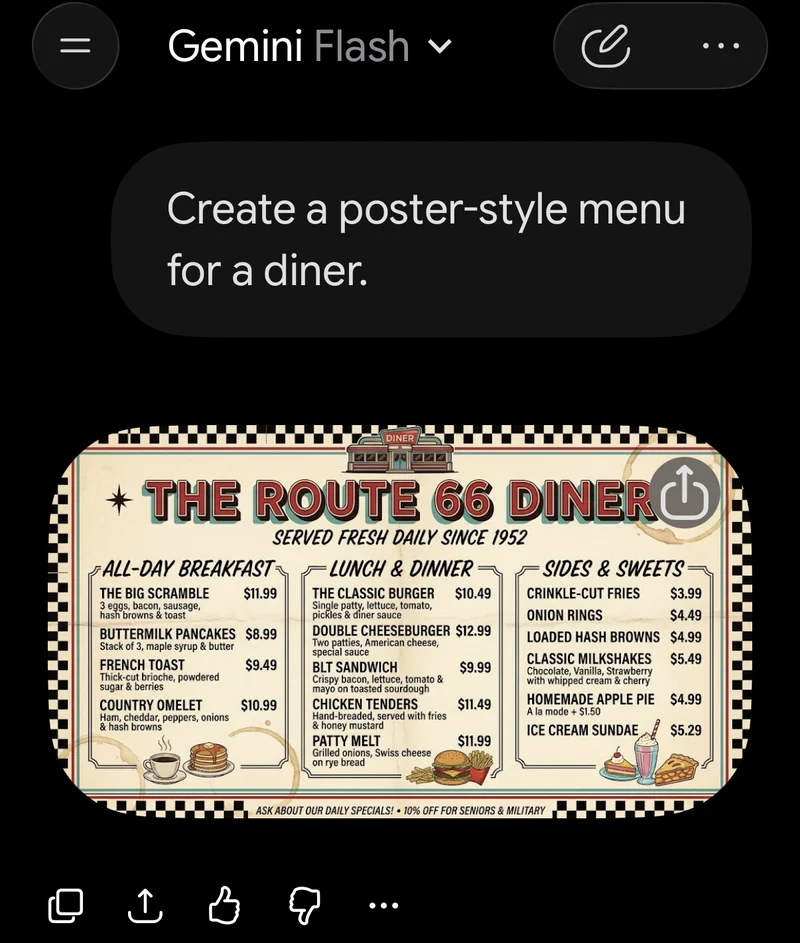
A diner menu we generated in the Gemini iPhone app with the prompt “Create a poster-style menu for a diner.” The button on the image opens the share options. Note that it came out wide — see section 3 for choosing the shape before you generate.
2. 1K vs 2K decides how big you can print
Gemini downloads are 1K without a Google AI plan and 2K with one (per Google’s help page). A square 1K image is roughly 1024 pixels on each side; 2K is roughly 2048.
| Print size | Pixels needed at 300 dpi | 1K (~1024 px) | 2K (~2048 px) |
|---|---|---|---|
| 4x6 in | 1200×1800 | A little soft on the long side | Sharp |
| 5x7 in | 1500×2100 | Soft | Sharp |
| 8x10 in | 2400×3000 | Too small | About 200–250 dpi — OK at arm’s length |
If you need a poster, upscale first and keep the text out of the AI image (see section 5).
3. Pick an aspect ratio that matches the paper
Gemini lets you choose the aspect ratio before it generates. A 4x6 print is exactly 2:3, so a 2:3 portrait image prints with nothing cut off. A square image printed as 4x6 loses about a third of the picture top-and-bottom or side-to-side.
4. Mind the corner watermark
Gemini images carry a small visible mark in the corner and an invisible SynthID watermark (Google’s own description). The invisible one doesn’t affect print quality. The visible one does print, so leave space for it when you crop. We don’t recommend trying to remove it — keeping it is the honest choice if the print goes on a shop wall or a flyer.
5. Add real text on top for flyers and signs
AI images are great backgrounds, but text inside them often comes out garbled, and you can’t change a price later. Use the Gemini image as a background and add your shop name, prices and headline as real text on top.
DecoTecoPop does this in your phone’s browser: drop the image in as the background, add outlined, 3D or glitter text, and export a PNG, an SVG, or a print-ready PDF (CMYK with crop marks) for a print shop. The text stays as vector shapes, so it’s sharp at any size and you can retype it when prices change. If you’d rather cut it on a Cricut or Silhouette, it can also export a layered cut file.
FAQ
Can I print a Gemini image straight from my phone?
Yes. Save it from the Gemini app, then print with AirPrint or the Android print menu, or send it to Walmart, CVS or Walgreens for pickup.
How big can I print a Gemini image?
1K is fine for 4x6. 2K covers 8x10 at about 200–250 dpi. For anything bigger, upscale first.
Why is there a small mark in the corner of my print?
That’s Gemini’s visible watermark. It prints, so leave room for it when you crop.