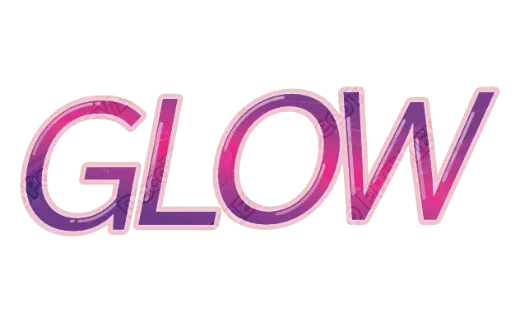
Somehow it always looks a bit amateurish on a phone
A pop sign for a kids’ event, a price tag for the bazaar, fan-art lettering for a cheering uchiwa. You want cute decorated text, so you add some letters in a phone app — but the edges come out jagged, or they get blurry when you enlarge them. It ends up looking a little too “homemade,” and you feel let down. Sound familiar?
This isn’t about your sense of style. It’s how the app works.
Why doesn’t text come out clean on a phone?
Most apps turn your letters into a “photo” the moment you add color or an outline. And when you blow a photo way up, you can see the little dots that make it up and the edges turn jagged. The same thing happens to your letters — that’s why the outlines look rough.
Worse, once a letter has become a “photo,” you can’t retype it. Notice a typo? You have to start over.
DecoTecoPop handles your letters as clean shapes, not photos. So no matter how big you make them, the edges stay smooth. Even when you create them with your finger on a small phone screen, they print out beautifully.
It doesn’t get choppy when you move things
Add a decoration or change its position, and it glides smoothly right on screen. The fact that this runs in your phone’s Safari browser as-is is the biggest thing that sets it apart from other apps.
How you used to make clean decorated text
Professional PC software is powerful, but it costs around $23 a month, needs a PC, and takes time to learn. Phone decoration apps are free and easy, but your text turns into a rough photo you can’t retype. Hiring a designer looks great, but it costs a few thousand yen and every edit takes time and effort.
You “just want one nice-looking word,” yet your only choices tended to be: buy software, hire someone, or put up with something rough.
With DecoTecoPop, it’s 3 steps [Free, no sign-up]
No app to install, no account to create. Just open your browser.
Step 1: Type your text
Enter the words you want to decorate. You can start with text alone — no photo needed — or place your text on top of a photo you took.
Step 2: Tap to decorate
Add outlines, 3D, gloss, and more with a tap. The edges stay smooth even when enlarged. Don’t like it? Add and remove as many times as you want.
Step 3: Switch to print colors and save
Screen color (light) and print color (ink) are a little different, so it automatically matches your design to how it will look in print. It also adds the bleed automatically so the outline comes out crisp, and saves a print-ready PDF you can hand straight to a print shop.
→ Make decorated text for free (Photos: PNG, JPEG, WEBP / no sign-up)
Why does it print so cleanly even though it’s made on a phone?
The key is that it handles your letters as shape data, not as a “photo (image).”
A photo is a collection of tiny dots (pixels), so enlarging it makes the dots stand out and the edges turn jagged. Shape data, on the other hand, is more like a blueprint that says “draw this line from here to here.” So no matter how big you scale it, the lines stay smooth. In the design world this is called vector, and it’s what’s used for logos, signage, and other things printed large.
Even when you create something with little finger taps on a small phone screen, it comes out clean in the fine-detail world of print thanks to this approach. And because it stays as shape data, you also get the perk that you can retype the text no matter how much you decorate it.
Where it shines
- Price tags and pop signs for bazaars and kids’ club events
- Uchiwa fans and cheering messages for fan activities
- Labels for handmade goods and sweets
- Title text laid over photos for flea-market listings
Mix and match decoration styles freely — 3D, layered outlines, melting, and more.
FAQ
Q. Which phones and browsers does it work on?
Editing decorated text needs a device and browser that support WebGPU, a relatively new technology. As a guide: on iPhone, a recent iOS (iOS 26 or later) in Safari; on Android, a recent version of Chrome. On unsupported devices the decoration editor may not open — you can still use the basic text and print-data features.
Q. Is it really free?
Yes — editing and decorating your text (styling and reshaping) is free, always. Exporting the print data (saving as PDF and so on) is free while we’re in beta, and will become paid later.
Q. I don’t know anything about design — is that okay?
Absolutely. Outlines and 3D are added with a tap, so there’s no jargon to learn. Try it as many times as you like until you find a combination you love.
Q. What kinds of photos can I use?
Ordinary photos from your phone (PNG, JPEG, WEBP). When you save, you can export a print-ready PDF or an image (JPG), among others.
Summary
- Text looks rough on a phone because the app turns your letters into a “photo”
- DecoTecoPop handles letters as clean shapes, so the edges stay smooth even when enlarged
- Add outlines, 3D, and gloss by tapping with your finger, and redo it as many times as you like
- Editing your decorated text is always free; converting to print colors and exporting are free while we’re in beta — no sign-up, on your phone alone
Even with only a phone, you can make cute text that’s ready for print. Try just one letter and see.