Graffiti Orange Text Generator
This font does not have those characters.
Some characters are missing from this font, so a substitute font was used.
Download
For print files (PDF), use Customize more to open the editor.
Graffiti Orange text generator: type any words, get 4 outline layers, 3-color gradient. Free PNG/SVG, print-ready PDF and Cricut/Silhouette cut files.
Make Graffiti Orange text with your own words
- Type your words above and tap Make it — the same outlines, colours and effects are rebuilt around your letters.
- Adjust the colours, size or spacing if you like.
- Download a transparent PNG, an SVG or a JPG. For a print-ready PDF or a cut file, tap Customize more to open the editor. No sign-up.
More styles: Logo Text Maker · Game Logo Text Generator · Outline Text Generator · Glitter Text Generator · Graffiti Text Generator · Text SVG for Cricut · T-Shirt Text Generator · Name Decal Maker · Team Name Logo Maker
Where this one works
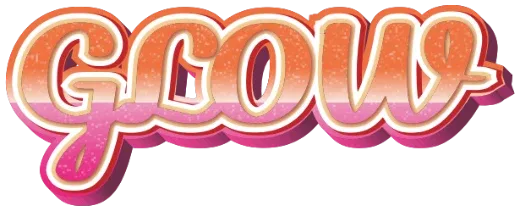
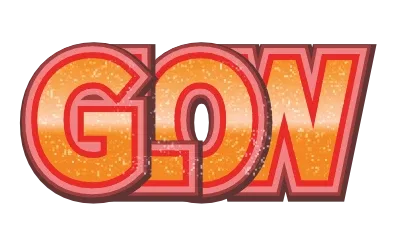
Graffiti Orange is built for skateboard and helmet decals, laptop stickers, and bold T-shirt transfers. The glitter texture holds up even at small sizes. Energetic letterforms that work as an attention-grabbing headline. Because the words stay editable, it is quick to run off a set with different names on each one — the usual reason a design gets made twenty times.
How this look is built
- 4 outline layers (outermost first)
- #582222about 12.6% of the letter height
- #9e3131about 10.3% of the letter height
- #f17f7fabout 8.1% of the letter height
- #ee0808about 4.1% of the letter height
- 3-colour gradient (90° angle)
- #ff8800
- #ffd1b3
- #ff8800
- Surface texture
- glitter, moderate
- Letterform changes
- heavily thickened strokes
Tips for using it
- The outlines are generous, so the shape survives at small sizes — good for stickers and small decals.
- Gradients and gloss come through as-is in print (PDF or PNG). A cut file is split into flat colour layers, so the colour count decides how much assembly work it is.
Cutting it from vinyl
- Tap Customize more to open it in the editor and export the SVG as a cut file. It is split into flat colour layers — at least 5 here (the fill, 4 outlines) — with overlapping letters already welded and the text turned into outlines, at true size.
- Cut one sheet of vinyl or HTV per layer — at least 5 colours in total. Upload the SVG to Cricut Design Space as-is (Silhouette Studio opens SVG in Designer Edition and up); nothing needs to be offset or welded again.
- Apply from the back: the outermost outline first, then each inner layer, and the letter fill last on top.
- Gradients, gloss and texture become flat colour in a cut file. To keep that look, use the print-ready PDF or PNG and cut around it (print then cut).
No Illustrator or paid Canva plan needed — the outlines, the print-ready PDF and the cut file all come from this page, free. Compare: vs Illustrator · vs Canva
What you can export
- PDF — print-ready, letters stay as shapes
- SVG — vector, sharp at any size
- PNG — transparent background, for videos, photos and social media
- Cut file — SVG split into flat colour layers
PNG, SVG and JPG download right here; the PDF and the cut file come from the editor (tap Customize more).
Questions about Graffiti Orange
Is Graffiti Orange free to use?
Yes. Type your words and download a transparent PNG or an SVG with no sign-up. The print-ready PDF and the cut file come from the editor (tap Customize more). Free while in beta; what you make is yours to use under our Terms.
Does Graffiti Orange stay sharp as an SVG?
The letters and outlines are vector paths, so they stay sharp at any size. The glitter is placed inside the SVG as an image.
How many vinyl colours does Graffiti Orange need?
At least 5: the fill and 4 outlines. The cut file makes a layer for each colour, so a shaded 3D side or letters in several colours add more layers. Gradients, gloss and texture become flat colour in a cut file.
Can I change the colours of Graffiti Orange?
Yes. Tap Customize more to open it in the editor and change the fill, each outline and the effects. Your words stay editable, and the downloaded file keeps the editing data so you can open it again later.
Style notes: Glitter, Layered outline, Gradient, Pastel