The short answer
If what you make is decorated text — names, shop signs, shirt transfers, stickers, party banners — you can do the whole job for free, on your phone, in DecoTecoPop. No subscription, no sign-up, no install.
If what you make is illustration, logos drawn from scratch, or multi-page layouts, keep Illustrator. This page is about the first group, and it tries to be honest about the second.
Why people reach for Illustrator for lettering
Illustrator is the standard for one reason: it keeps text as vector shapes you can stack effects on. A classic sticker look is a fill, then a white outline, then a coloured outline, then a shadow — four “appearances” on one word, all still editable.
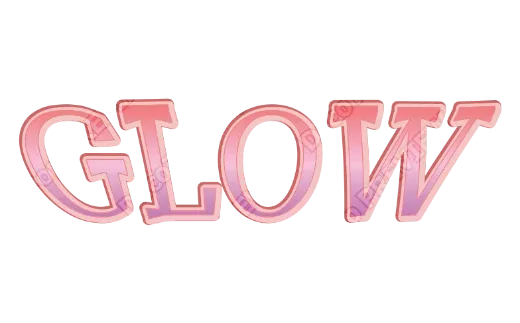
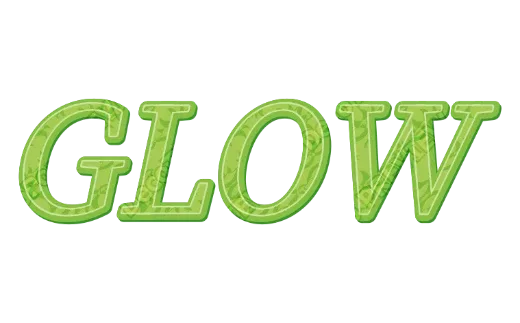
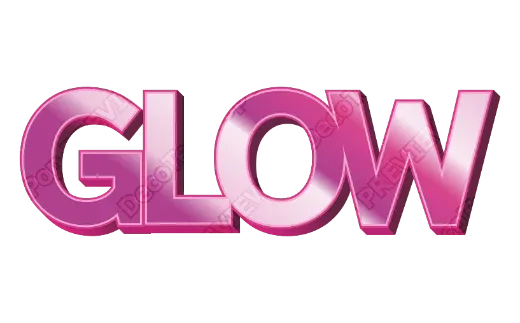
That is exactly the part DecoTecoPop is built around. Every word you type can carry:
- several outlines at once (each with its own colour and thickness)
- gradients, gloss, glitter and texture
- shadows and 3D extrusion
- warps, arcs and puffed-up letterforms
…and the text stays text. Change “Emma” to “Olivia” and every outline, shadow and gradient follows the new letters.
Side-by-side
| Illustrator | DecoTecoPop | |
|---|---|---|
| Price | Paid subscription (about $23/month on an annual plan at the time of writing) | Free |
| Works on a phone | Desktop app (an iPad app exists) | Built for the phone first; also works on a computer |
| Multiple outlines on live text | Yes (Appearance panel) | Yes (tap to add another outline) |
| Retype after decorating | Yes | Yes — every effect follows the new words |
| Print-ready PDF (CMYK, bleed, crop marks) | Yes, set up by hand | Yes, set up for you |
| Layered SVG cut file for Cricut / Silhouette | Possible, but you separate colours, outline the text and weld overlaps yourself | One tap: split by colour, text outlined, overlaps welded, true size |
| Your images stay on your device | Local app | Yes — nothing is uploaded to a server |
| Drawing illustrations, pen tool, complex logos | Excellent | Not what it’s for |
| Multi-page layouts, typesetting long text | Excellent | Not what it’s for |
| Huge asset library | Via Adobe Stock | A small set of templates and parts |
Where DecoTecoPop is genuinely better
1. The cut file is the hard part, and it’s automatic. Turning decorated text into something a cutting machine can use usually means: outline the text, release compound paths, separate each colour onto its own layer, offset the lower layers so they don’t show gaps, weld every overlapping letter. DecoTecoPop does that on export. (More on why welding goes wrong in Why Your Welded Text Looks Wrong.)
2. Print files are pre-flighted for you. Bleed, crop marks and CMYK conversion are part of the export, not a checklist you have to remember. If you’ve ever had a print shop send a file back, this is the part that saves you.
3. It reopens. A PDF exported from DecoTecoPop can be opened again later and edited as live text — not as a flat picture of text.
4. It’s on the device you already have in your hand. For a lot of people the realistic choice isn’t “Illustrator or something else”, it’s “a phone or nothing”.
Where Illustrator still wins
Be clear-eyed about this: if you draw with the pen tool, build logos from shapes, lay out a magazine or need pixel-perfect control of every anchor point, DecoTecoPop won’t replace that. It is a lettering and output tool, not a general vector editor.
Try it in a minute
- Open the editor and type your word.
- Add outlines, a shadow or a gradient from the Decorate tab — or start from a ready-made look in Select Pop.
- Export a PDF for printing, an SVG, or a cut file for your machine.
If you mostly cut vinyl, start with How to Make Layered Vinyl Text Without Buying Layered SVGs.