“Please submit an .ai file”—and you froze
You’re about to order flyers, shop cards or business cards, and the print shop’s upload guide says “Please submit your file as an .ai file.” But you don’t own Adobe Illustrator, and all you have is your phone.
I hear this question a lot. When I first started working with print, I honestly wondered whether “AI file” meant something made with artificial intelligence. (It doesn’t—it has nothing to do with AI.)
Let me give you the conclusion up front.
DecoTecoPop can’t create a real .ai file either. But it can create a complete, print-ready PDF that print shops accept—using only your phone. Crop marks, bleed, and the tricky “outline your text” step are all handled behind the scenes.
In this post, I’ll walk through why you can’t make an .ai file, how to submit a PDF instead, and how to avoid getting your file rejected.
| What you want to know | Answer |
|---|---|
| Can I make an .ai file on my phone? | No (it’s Illustrator’s own format) |
| What should I submit instead? | A print-ready PDF (PDF/X) |
| Will the shop accept a PDF? | Most print shops accept PDF (check their upload guide to be sure) |
| Crop marks and bleed? | DecoTecoPop adds them automatically when you export |
| Outlining the text? | Done automatically when you export |
| What if I need to fix something later? | Reopen the exported PDF and keep editing |
What exactly is an “.ai file”?
An “.ai file” is a file made in Adobe Illustrator. The file name ends in “.ai,” which is where the name comes from.
Illustrator has long been the standard tool in printing, so many print shops write “send us an .ai file” in their guides.
But .ai is Illustrator’s own special format. It’s built for Illustrator, and other apps can’t produce the same thing. Not just DecoTecoPop—assume that making a genuine .ai file without Illustrator basically isn’t possible.
“So I have to buy Illustrator?” Not at all.
What the print shop really wants isn’t “.ai”—it’s a proper print-ready file
This is the most important point.
When a print shop says “send an .ai file,” it isn’t because they love .ai. They want a file that meets the conditions for printing. Those conditions are roughly these five:
- Colors are in print colors (CMYK)
- There’s bleed (the background extends about 3 mm / 1/8 inch past the trim edge)
- There are crop marks (marks showing where to cut)
- Text is outlined (so the shapes don’t change even if the shop doesn’t have your font)
- Images have enough resolution
A PDF that meets all of these—especially the print-specific PDF/X format—is accepted by most print shops just like an .ai file. If you read the upload guide closely, you’ll often see “.ai / PDF” listed side by side.
If CMYK is new to you, start with What Is CMYK? How It Differs from RGB and Why Printing Needs It.
Making a print-ready PDF with just your phone
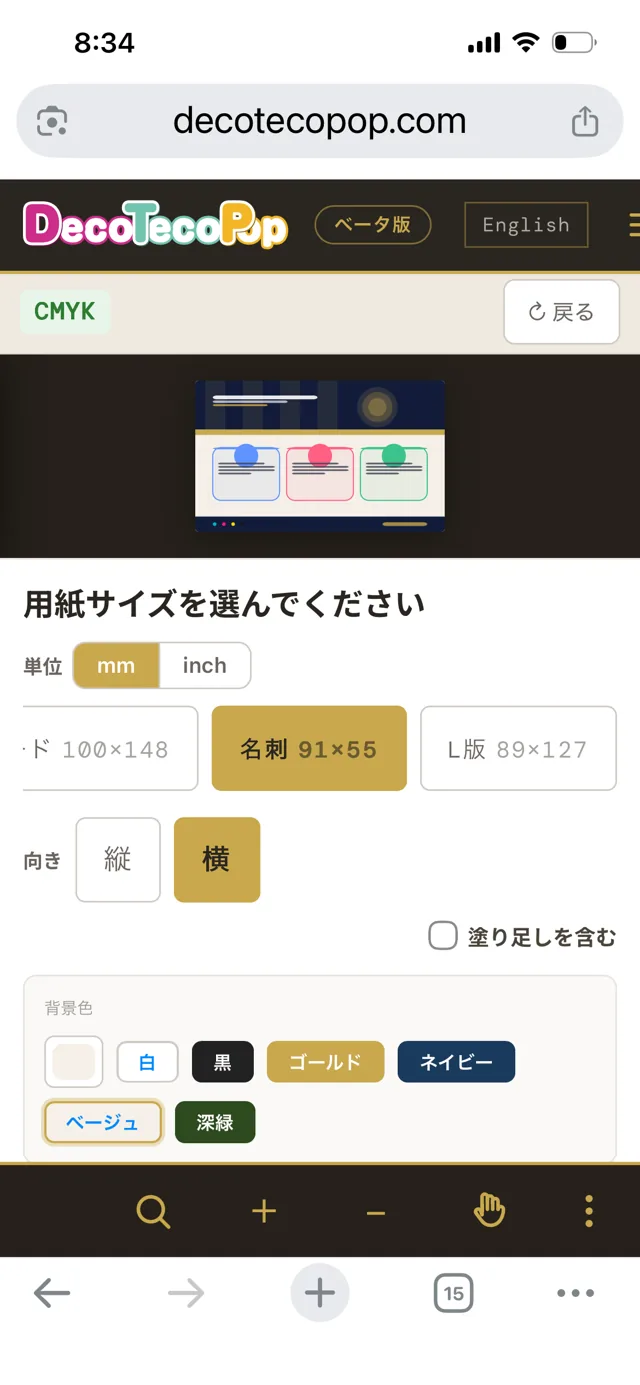
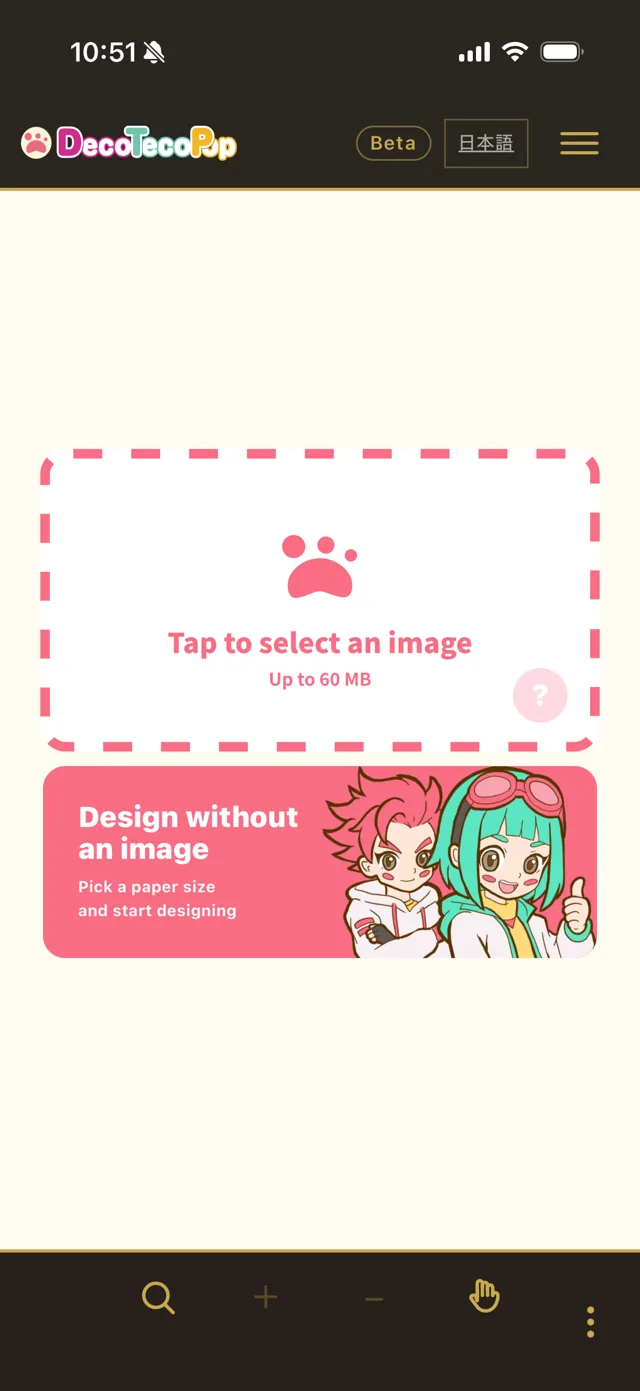
Let’s actually make one. DecoTecoPop needs no app install and no sign-up—just open it in your phone’s browser.
- Choose the paper size: business card, postcard, letter, A4, and more—whatever you’re ordering.
- Add your text and photos: type and decorate text, or add photos. You can even remove a photo’s background to cut out just the person or product.
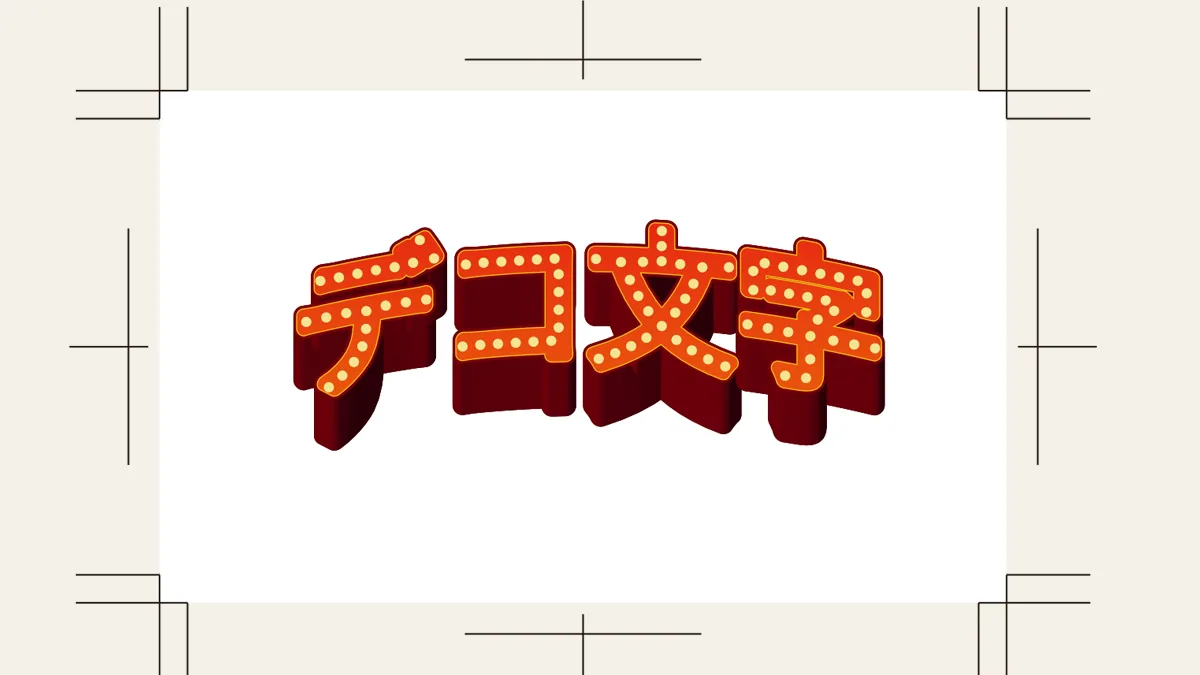
- Keep important text inside: place it at least 3 mm (1/8 inch) inside the trim line shown on screen.
- Export as PDF: export with crop marks and bleed.
That’s it. Converting to CMYK, adding bleed and crop marks, and outlining the text are all done for you when you export.
For the general flow of making print files on a phone, see How to Turn Phone-Made AI Images into Print Files.
You don’t have to build crop marks or bleed yourself
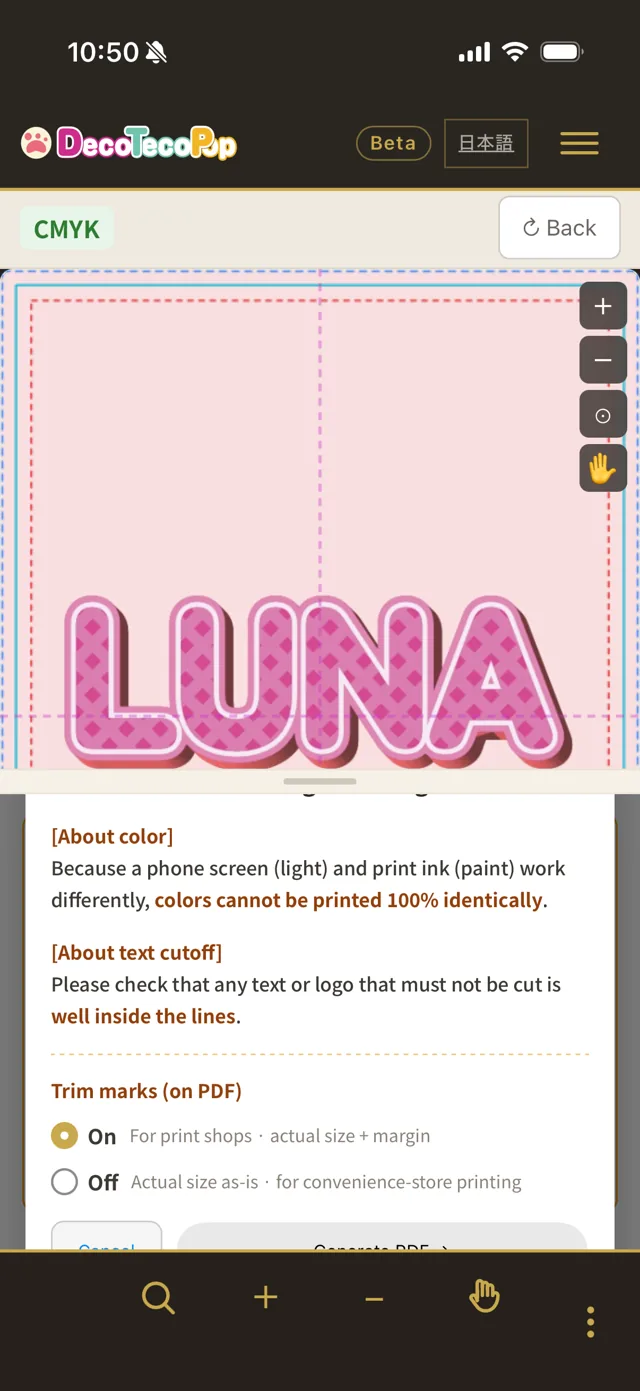
When people make print files in Illustrator for the first time, crop marks and bleed are where they usually get stuck.
- Crop marks: the little cross-shaped marks at the corners that show where to cut.
- Bleed: extending the background about 3 mm past the edge so no white gap appears if the cut shifts slightly.
In Illustrator, you have to set these up yourself. In DecoTecoPop, you just turn them on when you export.
For a visual explanation of bleed, see How to Add Bleed in Canva’s Free Plan.
You don’t have to think about “outlining text” either
Almost every print shop guide includes the line “Please outline all text.”
This means turning text from “font characters” into “shapes.” If the print shop’s computer doesn’t have the same font, your text can be swapped for another font or come out garbled.
In Illustrator, you do this yourself. And once text is outlined, you can’t retype it anymore, so you have to keep a separate editable copy.
DecoTecoPop automatically outlines your text when you export to PDF. Without doing anything, your file is ready for the print shop.
Need to fix something after exporting? No problem
“If the text is outlined, can I still edit it?” You might worry about that.
DecoTecoPop takes care of that too. Reopen the exported PDF and your text is editable again. Found a typo after sending it off? Phone number changed? You don’t have to start over.
You also don’t need to keep separate “working” and “print” files like you would with Illustrator. The exported PDF itself is your editable file.
To see how you can decorate text and still retype it, read Even Unrecognizable Text Can Be Retyped—Decorate by Feel.
If they still say “it has to be .ai”
Most print shops accept PDF, but a few may insist on .ai only. Here are your options:
| Option | When it fits |
|---|---|
| Ask the shop, “Can I submit a PDF/X instead?” | Try this first. Many say yes to PDF/X |
| Choose a print shop that accepts PDF | Most online printers accept PDF uploads |
| Have someone with Illustrator open your PDF and save it as .ai | When you truly need .ai. Illustrator can open PDFs |
The PDF you export from DecoTecoPop keeps text and decorations as vectors (shape data), so it can also be opened in Illustrator to keep working.
Frequently asked questions
Q. Can I really make print files with just my phone?
Yes. Open the page in Safari on iPhone or Chrome on Android, and you can go from choosing the paper size to exporting a PDF without a computer.
Q. Can I also print at home or at a copy shop?
Yes. Besides the print-shop PDF, you can export a PNG for home printers or self-service printing.
Q. Can I include photos?
Yes. Photos are converted to print colors (CMYK) and included in the PDF. If the original photo is very small, it may look blurry when printed, so use the largest version you have.
Q. Does it cost anything?
Editing is free. Exporting print files is free during the beta (it’s planned to become paid later). No sign-up needed.
Q. Can I open files I made in Illustrator?
Not .ai files. But a PDF exported from Illustrator can be loaded as a background image, and you can add text and decorations on top (you can’t edit the individual text or parts inside that PDF).
Summary
- An .ai file is Illustrator’s own special format, so other apps can’t make one
- What print shops really want isn’t .ai itself, but a file that meets the printing requirements
- A PDF with CMYK, bleed, crop marks and outlined text is accepted by most print shops
- DecoTecoPop adds all of these automatically, using only your phone
- An exported PDF can be reopened and edited later
- If you truly need .ai, ask the shop whether PDF/X is OK
You don’t have to give up just because you don’t have Illustrator. Try making one on your phone.
→ Make a print-ready PDF on your phone (no sign-up, just your browser)