Printing a ChatGPT image as-is is a missed opportunity
Shop menus, notices by the register, seasonal “today’s special” signs—AI has become incredibly handy for these small print jobs.
Ask ChatGPT for “a background for a café’s autumn menu, warm and hand-drawn,” and it creates something stylish in seconds. Give it a photo, and it can build an image from that too.
Save the image to your phone and print it at home or at a self-service printer—that works fine.
But with just one more step, it becomes a sign that feels truly like your shop:
- Use the ChatGPT image as the background
- Layer your shop logo on top
- Add prices in eye-catching decorated text
Here’s how to do all three with DecoTecoPop, using only your phone. And when prices change later, you can update just the numbers without starting over.
| What you want | How to do it in DecoTecoPop |
|---|---|
| Use a ChatGPT image | Load it as the background |
| Add your shop logo | Layer it on top as an image (you can remove its background) |
| Make prices stand out | Add them as decorated text (outlines, 3D, gradients) |
| Print it | Export as PDF, PNG, JPG and more |
| Prices changed | Reopen the exported file and retype just the numbers |
What goes wrong when you print a ChatGPT image as-is
These three problems come up most often:
- You can’t edit the text later. If ChatGPT draws the prices into the image, they become part of the picture. Every price change means making a new image—and AI-drawn numbers are sometimes slightly distorted.
- Your logo isn’t there. ChatGPT won’t reproduce your shop’s logo accurately.
- Colors look dull or blurry in print. Printing screen colors (RGB) as-is can make colors look darker, and small images get blurry when printed large.
That’s why we recommend letting ChatGPT handle the background, and adding text and logo yourself. Splitting the roles brings out the best of each.
To understand why AI images get blurry in print, see Why AI Images Look Blurry When Printed—and How to Fix It.
Finishing a sign with just your phone
1. Make the background in ChatGPT
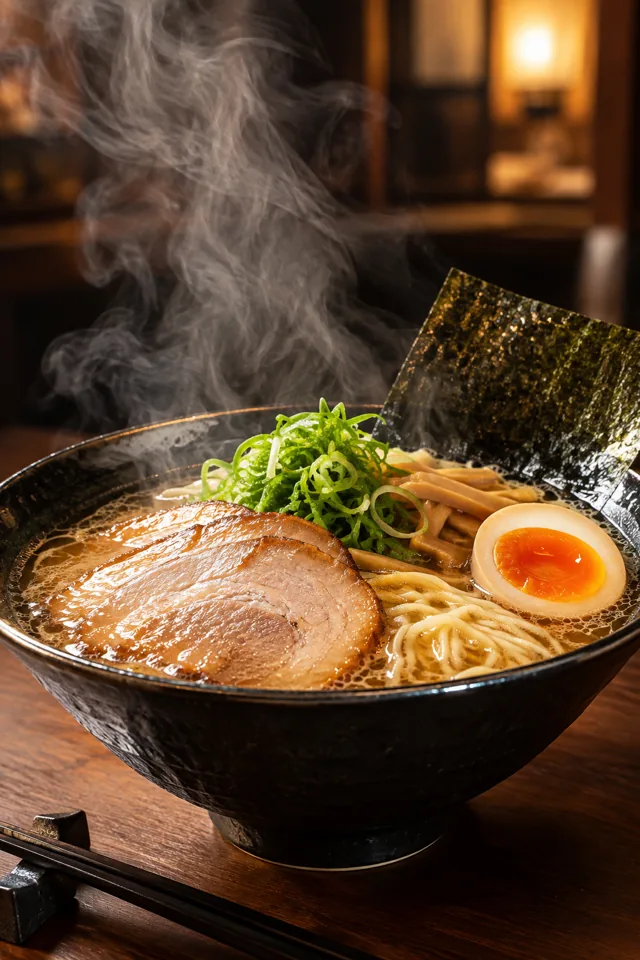
First, have ChatGPT make a background image. The trick is to ask it not to include any text.
“Please make a background image for a café’s autumn menu. Illustrations of autumn leaves and coffee. Keep the center clear because I’ll add text there. Don’t include any text.”
That way your own text will sit cleanly on top later. Save the image to your phone.
2. Choose a paper size and set the image as background
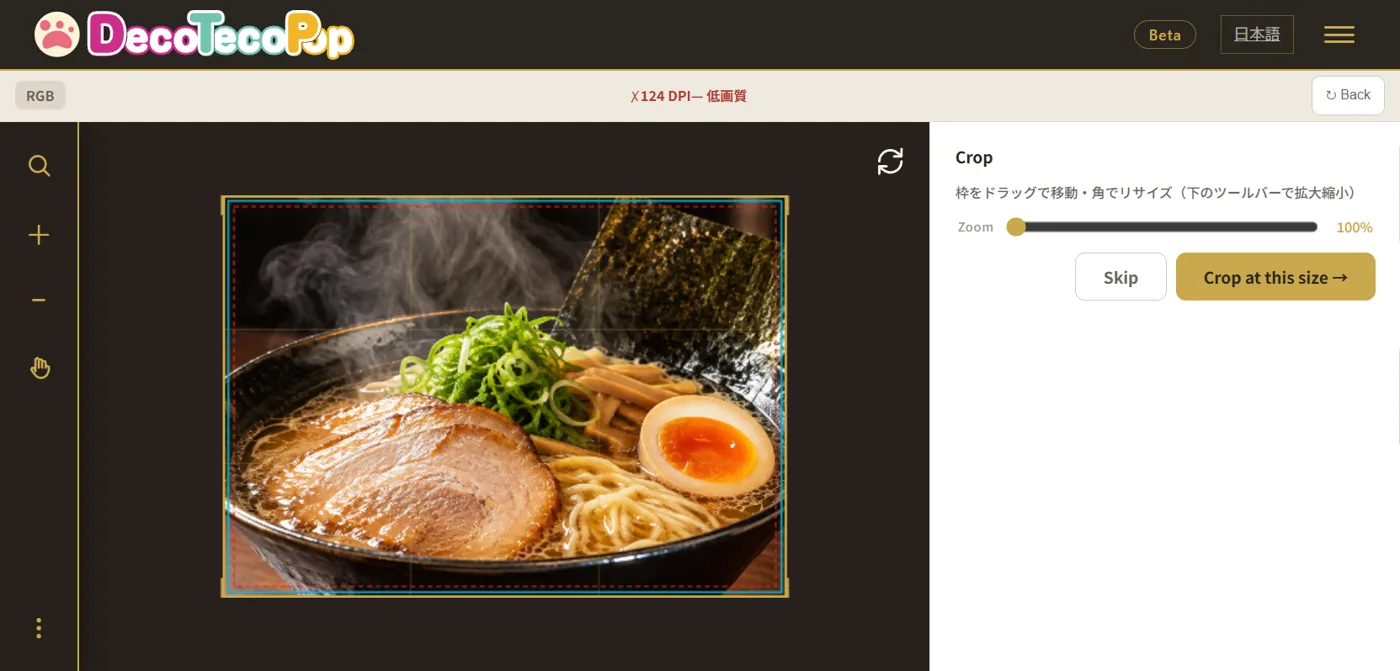
Open DecoTecoPop, choose the size you want to print (letter, A4, postcard, etc.), and load the saved image as the background.
If the image is too small and might look blurry in print, you’ll see a guide on screen. If it’s not enough, you can enlarge it.
3. Layer your shop logo
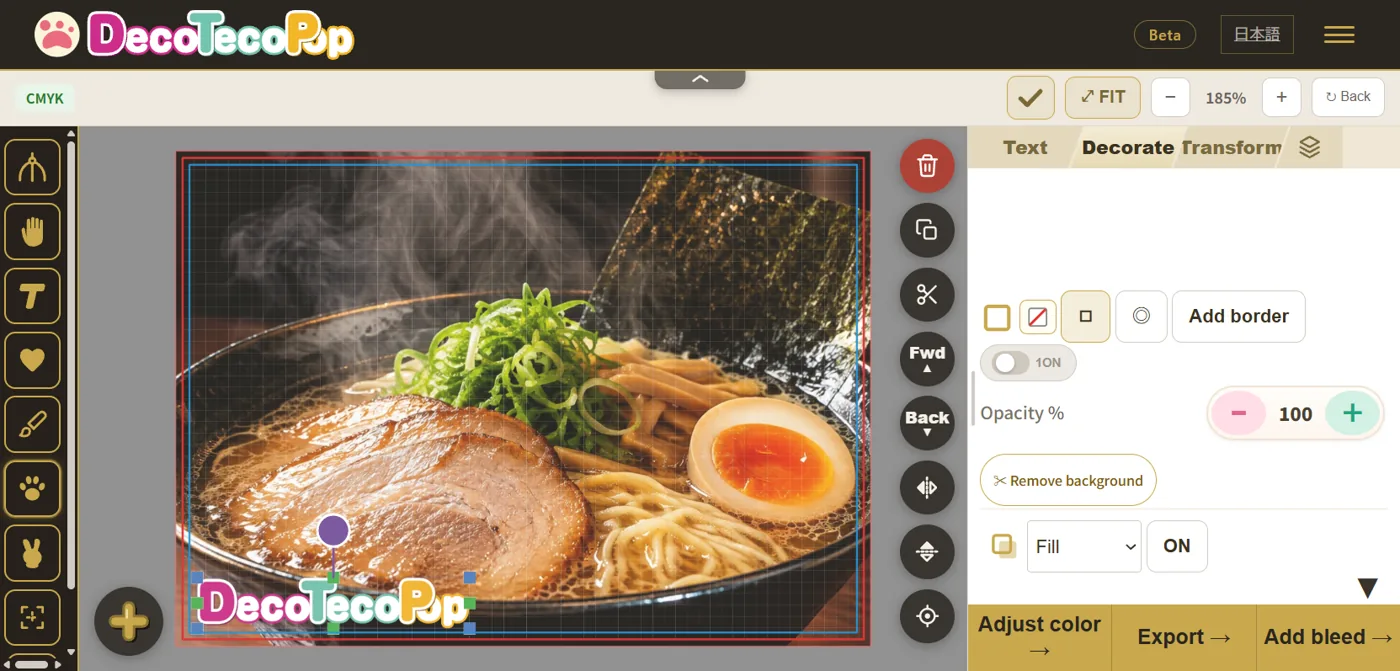
Load your logo image and place it on top. Even if your logo has a white background, the remove background button cuts out just the logo shape. Drag to set its size and position.
4. Add prices in decorated text
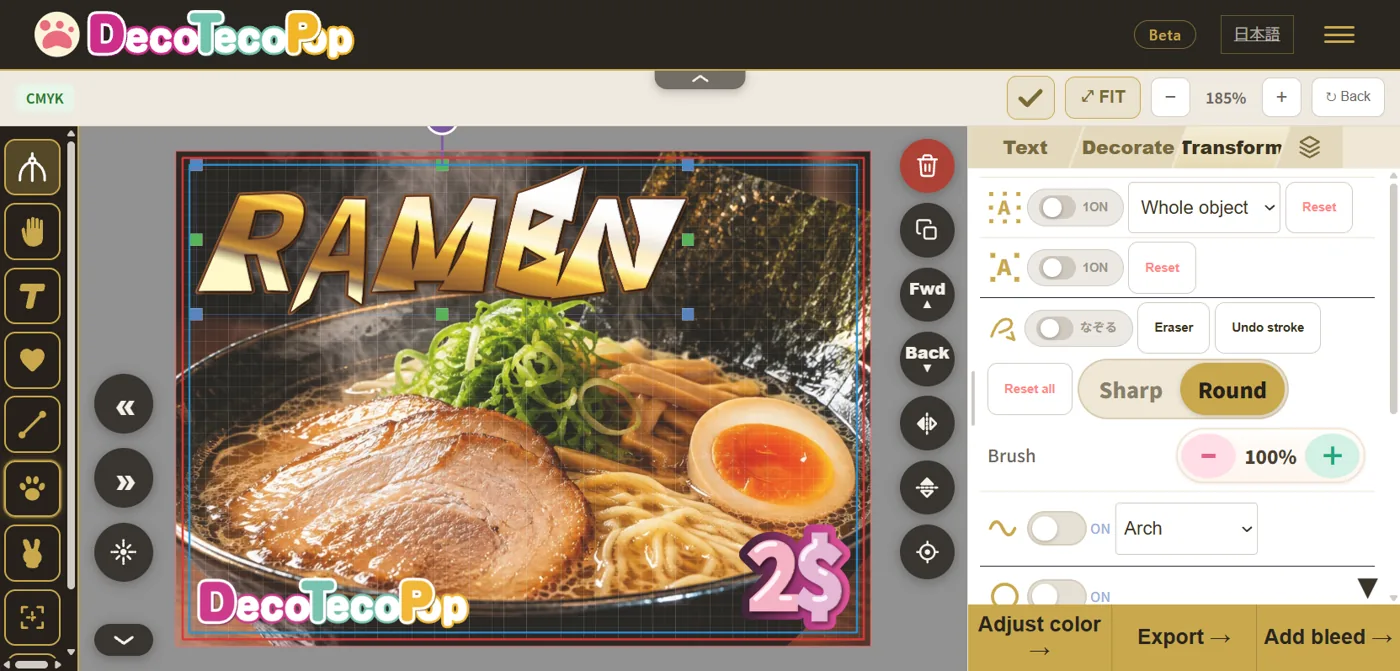
Type the prices and product names, then decorate them with outlines, 3D or gradients. Adding a white or dark outline around the text keeps it readable even over a busy background.
5. Export in the format you want
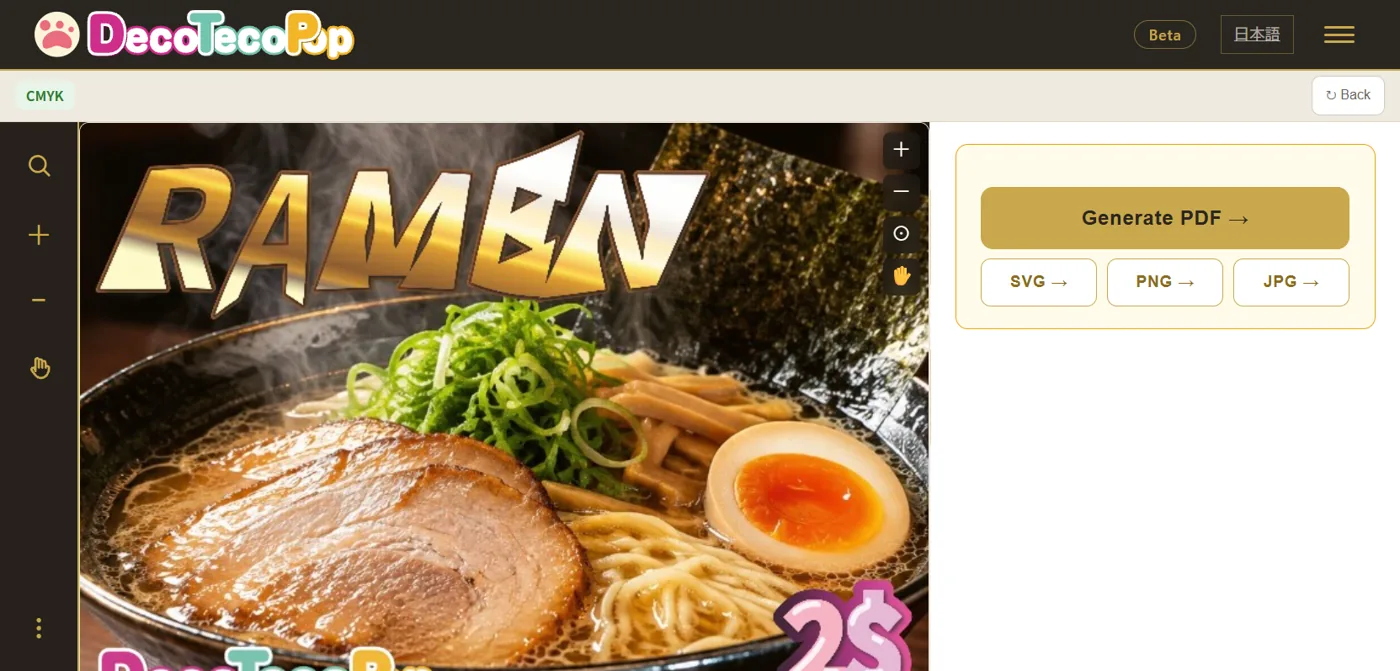
Then just export:
- Printing at home or a copy shop? PNG or JPG
- Ordering from a print shop? PDF with crop marks and bleed
Either way, image colors are converted to print colors (CMYK). And that’s it—your print file is ready.
For decorated text ideas, see Free Printable Deco Text Maker.
Prices changed? Just reopen the file and fix them
This might be the best part for a shop.
DecoTecoPop has no “save” button, because the exported file itself is your editable file. Export as PDF, PNG, JPG or SVG, and when you load it again, it opens ready to edit.
So you can easily:
- Retype just the price when it goes up or down
- Swap just the background for a new ChatGPT image when the season changes
- Make many signs with the same design, changing only the product name and price
No need to ask ChatGPT for a new image every time, or rebuild the design from scratch.
To see how you can keep the decorations and still retype text, read Even Unrecognizable Text Can Be Retyped—Decorate by Feel.
Three tips for clean prints
| Tip | Why |
|---|---|
| Keep important text at least 3 mm (1/8 inch) from the edge | So it isn’t cut off by trimming or printer margins |
| Add an outline to your text | Prices stay readable even over a busy background |
| Tone down very bright colors a little | Screen colors tend to look a bit darker when printed |
Neon-like colors and bright sky blues in particular tend to darken in print. If color shifts bother you, see Why Canva Prints Change Color and How to Fix It.
Frequently asked questions
Q. Can I use ChatGPT images for my shop’s signs?
They’re commonly used for shop signs and menus, but the rules depend on ChatGPT’s (OpenAI’s) terms of use. Please check the latest terms to be sure. Images that include real people or other companies’ logos or characters need separate rights checks.
Q. Can I print at home or at a copy shop?
Yes. Export as PNG or JPG and print it like any other image.
Q. Can I order from a print shop?
Yes. Export a PDF with crop marks and bleed, and you can submit it to a print shop as-is.
Q. Do I need a computer?
No. You can do everything from loading the background to exporting, right in your phone’s browser. It works the same on a computer too.
Q. Does it cost anything?
Editing is free. Exporting print files is free during the beta (it’s planned to become paid later). No sign-up needed.
Summary
- Rather than printing a ChatGPT image as-is, use it as a background
- Add your logo and prices yourself for more originality and crisp text
- You can remove your logo’s background and make prices stand out with decorated text
- Export in your preferred format, and your print file is done
- Reopen the exported file and update prices just by retyping the numbers
Let AI handle what it’s good at, and decide the rest yourself. That’s all it takes to turn a simple sign into one that feels like your shop.
→ Make a shop sign on your phone (no sign-up, just your browser)