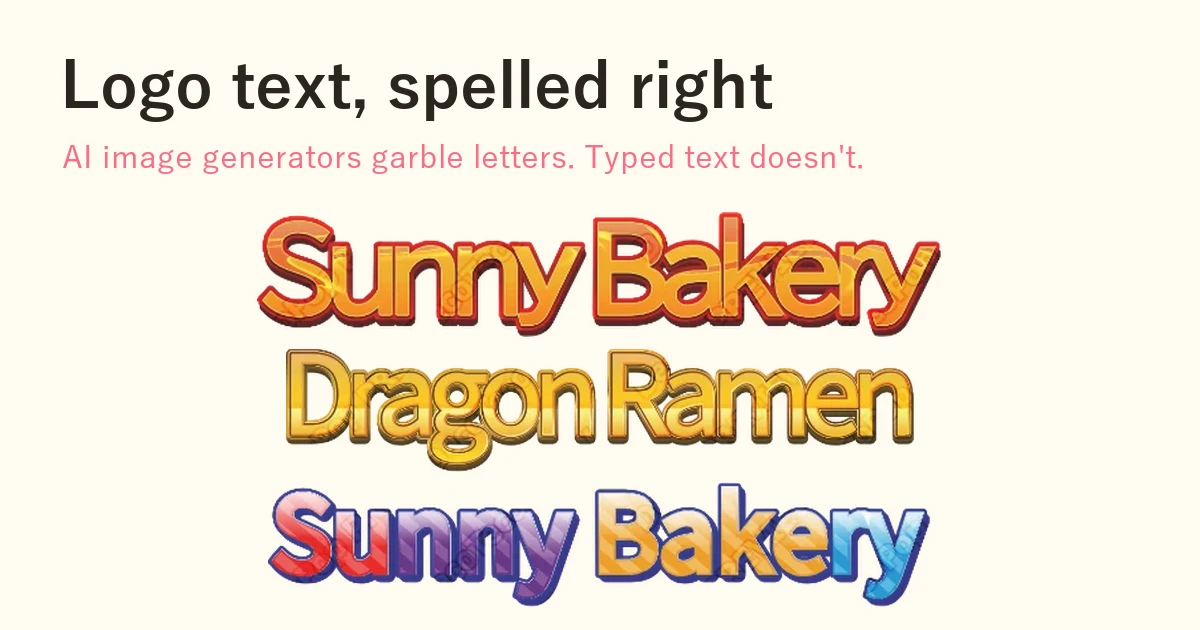
The short answer
If you ask an AI image generator for a logo, the text is the part most likely to come out wrong: a misspelled shop name, a doubled letter, a character that does not exist. That is not you writing a bad prompt — image models draw letters as shapes that look like text, not as text.
If every letter matters, there is one reliable fix: type the text and render it with a real font. In the Logo Text Maker you type your name once and get it in dozens of finished styles — 3D, gloss, stacked outlines, gold, chrome. The letters are exactly what you typed — and instead of another generic AI logo, you get a one-of-a-kind text logo that is entirely yours. Download a transparent PNG, an SVG or a print-ready PDF, free and with no sign-up.
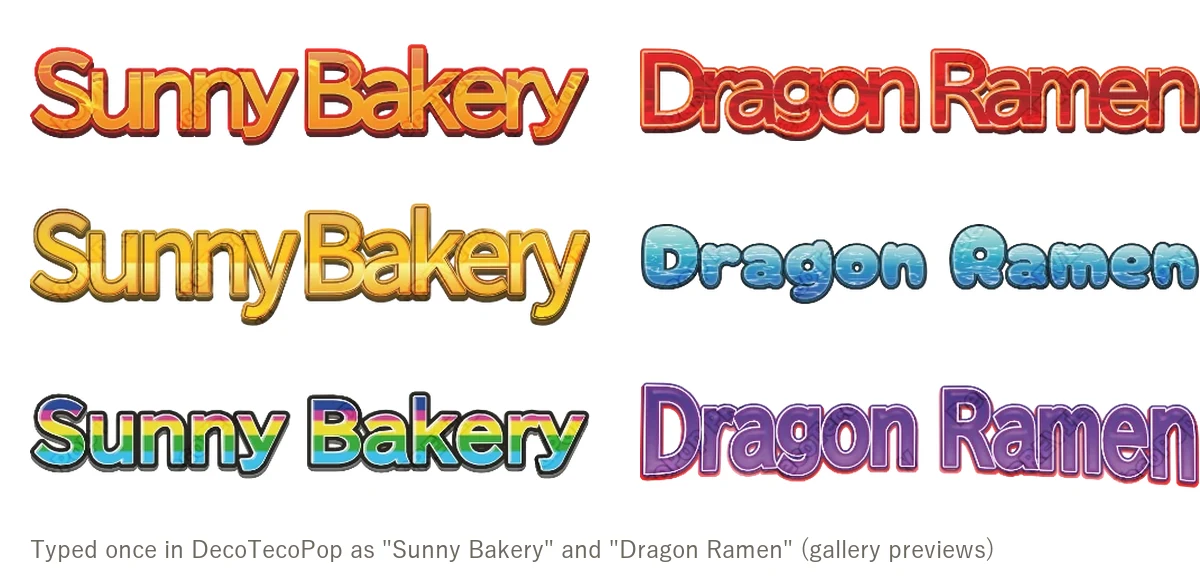
Typed once as “Sunny Bakery” and “Dragon Ramen”, then a style picked. These are gallery previews, which carry a faint preview mark; downloaded files do not.
Why AI logo generators get the text wrong
Image generators learn what pictures tend to look like and paint something similar. They paint letters the same way: as patterns of strokes that usually appear on signs and labels. The model is not spelling your word; it is drawing something word-shaped.
Text breaks most often when:
- The name is long. More letters, more chances for one of them to go wrong.
- The text is small. Taglines, opening hours and fine print blur into near-letters.
- The script is not Latin. Japanese, Chinese, Arabic, Korean and others have far less training material, and kanji in particular differ by a single stroke.
- You give it an existing logo. Even with the file attached, the result is often slightly re-drawn — a different angle or stroke weight.
AI text has improved a lot, and short English words often come out right now. But as of 2026, guides from image tool makers still advise against trusting AI for exact, brand-critical text, and recommend adding it afterwards as an editable text layer (CapCut’s 2026 guide). Teams using AI for cover images have reported the same: non-Latin text is hard to control with prompts, and attached logos come back subtly changed (KINTO Technologies).
The usual failure types
| What goes wrong | Example |
|---|---|
| Swapped or doubled letters | ”Bakkery”, “Sunyy” |
| A letter that is not a letter | An “R” with an extra leg, an “a” that is half “o” |
| The word drifts | The first half is right, the second half turns into gibberish |
| Small text melts | The tagline under the logo becomes unreadable texture |
| Non-Latin characters invented | Kanji-like shapes that are not in any dictionary |
A logo is seen thousands of times. One wrong letter makes it a different name.
Even when the spelling is right
A correct AI logo still has limits:
- You can’t retype it. Add a branch name, fix a typo, change the tagline — and you are generating again, getting a different-looking logo.
- You can’t get the same logo twice. The same prompt gives a slightly different picture each time, so your card, sign and website stop matching.
- The resolution is fixed. It is a picture; stretch it for a banner and it blurs.
- There is no vector file. Cutting machines, embroidery and print shops often ask for SVG or PDF.
How to make a logo with every letter right
“Type the text, pick the look.”
- Type your name in the Logo Text Maker. Any language your font supports.
- Pick a style. Your exact words appear in dozens of finished styles — 3D, gloss, stacked outlines, gold, chrome, retro.
- Adjust. Change colours, size, spacing or font. Retype the words any time; the decoration rebuilds itself around the new letters.
- Download a transparent PNG (for photos, videos and social posts), an SVG (sharp at any size), a JPG, or a print PDF (CMYK, bleed and crop marks). No sign-up, no watermark.
Because the letters are drawn from the font itself, they cannot turn into different letters, however heavy the decoration.
It also avoids the other kind of garbled text
There is a second way logo text breaks: you send the file to a print shop or another computer, the font is missing, and the text is substituted or turns into boxes. In the downloaded PDF and SVG, the letters are already outlined (converted to shapes), so they look the same everywhere — no font needed on the other end.
Use AI for what it is good at
AI image generators are great for backgrounds, illustrations and mood. They are weak at exact text. So split the job:
- Generate the background or illustration with AI, and ask it to leave out text.
- Make the name and tagline here and place them on top as a transparent PNG.
- For print, combine them into a print-ready PDF.
Checklist before you use a logo
- Read it letter by letter, out loud. Is it exactly the name?
- Shrink it to app-icon size. Is it still readable?
- Do you have both a transparent PNG and an SVG or PDF?
- Can you still edit the words later?
FAQ
Is it free? Yes, while the tool is in beta — no sign-up, no watermark.
Does it work for non-English names? Yes. Letters are drawn from the font, so accented letters, Japanese and other scripts come out as typed. If the chosen font lacks a character, the tool tells you it used a substitute font.
Can I change the text later? Yes. Downloaded files keep the editing data; open them in the tool again and retype.
Can I use the logo commercially? We do not claim copyright on what you make (Terms). A logo made only from a standard font can be hard to register as a trademark, so ask a professional if you plan to register it.
Make a logo with every letter right in the Logo Text Maker, or see more in How to choose a free logo text maker.