The short answer
Banner Pop is a free banner maker that runs in your phone’s browser. No app, no sign-up.
- Choose the size of your banner (each size comes with a sample).
- Open the sample with Edit as is and retype the text.
- Mix and match text styles, a background, photos and stickers.
- Export a JPEG or PNG.
You can also make just the styled text as a transparent PNG and drop it into Canva — more on that below.
Why AI banners rarely come out right
You can ask ChatGPT or Gemini for a banner now, and the pictures can look great. But in practice:
- your shop name comes back misspelled or as letters that aren’t quite letters,
- the design is not what you had in mind, and
- when you ask for one small fix, the whole image changes.
On the other hand, sitting down to build a polished, high-end banner from scratch is hard if you don’t know where to start.
Banner Pop takes the steps a designer actually follows — set the size, lay down a background, make the main words stand out, finish with accents — and turns each step into a few taps. The goal is a banner that looks like a pro made it, while every piece (text, photo, sticker) stays selectable and editable. Your name is spelled right because you type it.
If you like an AI image, use it as the background and add the words on top. Paint over the AI’s broken text in MOJIKUI, then tap Use as banner to start Banner Pop with that image as the background. (Why the text breaks: ChatGPT image has garbled text?)
How to make a banner: a YouTube-size banner, step by step
1. Choose a size
Open Banner Pop and you’ll see Choose the size of your banner. For this example, pick Landscape banner (16:9), 1280×720 under Social & video — the size used for YouTube thumbnails and X posts.
Other sizes include square (1080×1080 for Instagram and Facebook), portrait 3:4 and 2:3 (Pinterest), a hero image (1920×1080), a product image (1000×1000) and several online ad sizes. For anything else, use Make a custom size at the bottom and type the width and height in pixels (50–4000 px per side).
2. Open the sample with “Edit as is”
When you pick a size that has a sample, you’re asked How do you want to use this sample?
- Edit as is keeps the sample’s text and stickers — just retype the words.
- Background only keeps the sample’s background photo and clears everything else.
3. Retype the text and pick a style
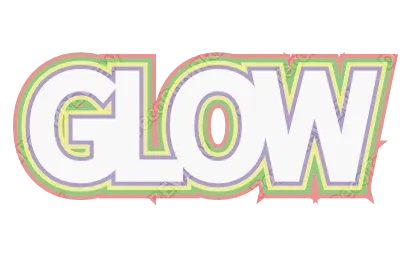
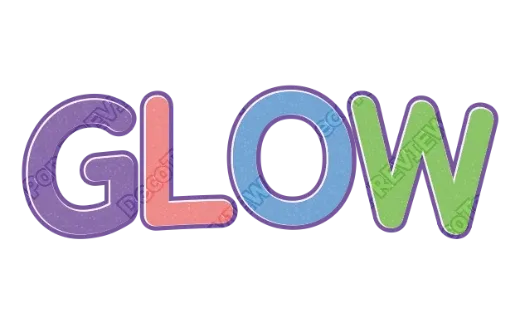
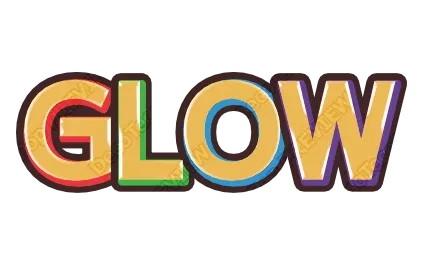
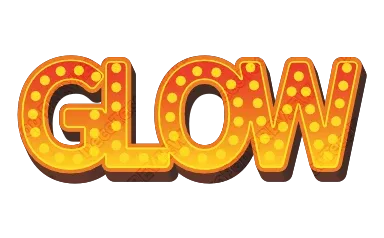
Tap Text in the bottom bar to change the words and choose a Font. Then tap Style inside the Text panel: a row of finished text styles appears — stacked outlines, 3D, metallic, glitter and more. One tap restyles your words. Customize lets you change colors and gloss, Arch bends the text into a curve, and Shadow adds a soft or sharp drop shadow. Per-letter color & size lets you make a single letter (or a price) bigger or a different color.
4. Add a background, photos and stickers
- Background (bottom bar): one tap makes a background — glitter, fire, outer space, wood grain, washi paper, cherry blossoms and more. Effects adds a fire, lightning or sparkle frame, speed lines or confetti just above the background. You can also use your own photo as the background.
- Photos (under Style in the bottom bar → Images): Add a photo of a product or person, crop it to a square or a circle, or remove the background so only the product remains.
- Stickers (also under Style): shapes, icons, ribbons, badges, frames and speech bubbles, in any color.
Everything you place can be tapped and changed later — size, position, stacking order and color.
5. Export a JPEG or PNG
Open Export in the bottom bar and tap Export. Choose JPEG (photos, small file) or PNG (sharp), and a resolution of Large (2×), Medium (as is) or Small (half). On a phone, the share sheet opens so you can save it to Photos.
The exported file carries its editing data. Later, tap Re-edit a file on the first screen and choose it to change the text or background.
YouTube banner sizes (from YouTube’s Help Center)
“YouTube banner” can mean a video thumbnail or the wide image across the top of your channel (channel art). YouTube’s own numbers:
| YouTube Help Center | |
|---|---|
| Channel banner image | 2560×1440 px recommended, minimum 2048×1152 px (16:9), 6 MB or smaller |
| Text and logo safe area | 1235×338 px at the minimum size (centered) |
| Video thumbnail | 16:9, minimum width 640 px, JPG or PNG |
Sources: Manage your channel branding · Add video thumbnails
The channel banner is cropped differently on computers, phones and TVs. Keep your channel name inside the narrow strip in the middle and let the rest be background. In Banner Pop, type 2560×1440 under Custom size. At that size the editor shows a Safe area on every screen frame — keep your text inside it (the frame is not exported). If the file is over 6 MB, export a JPEG or pick a smaller resolution.
How to make a Now Hiring banner people can actually read
A hiring banner works when the details can be read at a glance — not when it’s the flashiest thing on the feed.
Say four things
- The job (server, line cook, sales associate…)
- The pay (hourly rate or range)
- Where (store name, neighborhood)
- How to apply (phone, website, “apply in store”)
Anything else — schedule, perks — gets one or two short lines at most.
Style the headline, keep the details plain
Put the style on “Now Hiring” or “We’re Hiring” and set the details in plain text so they stay readable on a phone. Use Per-letter color & size to make the pay rate pop. If the text sits on a photo, an outline or shadow keeps it readable.
Pick the size for where it goes
- Instagram or Facebook post: square (1080×1080) or portrait (3:4).
- Your website: hero image (1920×1080).
- A job board or listing site: check that site’s own image requirements and match them with Custom size.
- A printed sign for your window or counter: use the editor instead — it has Letter and Tabloid paper sizes and exports print-ready PDFs. A JPEG or PNG exported from Banner Pop can also be opened in the editor to keep working on it.
Double-check the pay and hours before you post. Because the banner stays editable, updating it when things change takes a minute of retyping, not a redesign.
Just the styled text, as a transparent PNG for Canva
If you design in Canva and only want a standout headline, make it in the Logo Text Maker and export a transparent PNG. Everything around the letters is see-through, so you can upload it to Canva and lay it over any photo or layout.
More on that: free text logo with a transparent background and a free Canva alternative for print-ready text.
Frequently asked questions
Q. Can I make a banner on my phone for free?
Yes. Banner Pop runs in your browser with no app and no account. Pick a size, mix text, styles, backgrounds and photos, and export a JPEG or PNG.
Q. What size is a YouTube channel banner?
YouTube recommends 2560×1440 px (minimum 2048×1152 px, 6 MB or smaller). Text and logos are guaranteed to show inside 1235×338 px at the minimum size. Enter 2560×1440 under Custom size.
Q. What should a Now Hiring banner say?
The job, the pay, the location and how to apply. Style only the headline and keep the details plain.
Q. Can I use just the styled text as a transparent PNG in Canva?
Yes. Make it in the Logo Text Maker, export a transparent PNG, and upload it to Canva.
Q. Can I edit my banner later?
Yes. Tap Re-edit a file on Banner Pop’s first screen and choose the JPEG or PNG you exported.
→ Make a banner with Banner Pop (no sign-up, just your browser)